Drone Remote Controller
- 4.2
- Rating
- 50.00K
- Installs
- Free
- Price
 Analysis by App-foxy
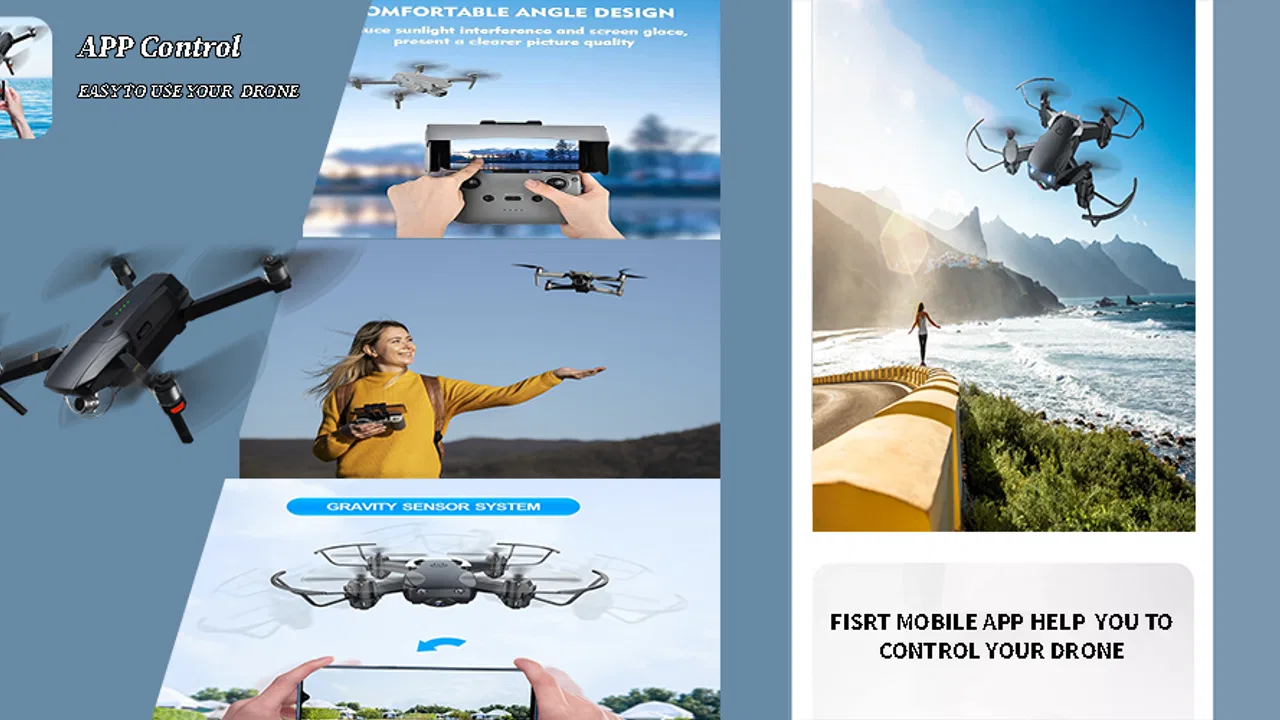
I approached Drone Remote Controller as a practical tool rather than a complete flying system. Its purpose is simple: it turns an Android phone into the display for a drone controller. That sounds narrow, and it is, but the distinction matters. This is not the same as replacing every part of a physical remote, nor is it a general drone simulator. It is an app for the moment when your phone needs to act as the screen while you operate compatible drone hardware.
After using it, my view is cautiously positive. The app is free, aimed at Everyone, and comes from SweatersApp. It sits in the Libraries & Demo section, which feels more accurate than treating it like a conventional game or a full aviation utility. The central idea is easy to understand, but the real question is whether it fits your particular controller and flying routine. If you already have a compatible setup, it can be a convenient way to keep the live view close at hand. If you expect a universal remote that works with any drone, you should be much more careful.
What the phone-based controller experience is really like
The first useful way to think about this app is as a display companion. Your hands still need to manage the physical controls, while the phone gives you the visual information that would otherwise be difficult to see. That arrangement is especially useful outdoors, where the drone may move beyond comfortable viewing distance almost immediately. A larger phone screen can also make framing easier than relying on a tiny built-in display.
You May Also Like

 Blood Strike: 2.5 Anniversary
Blood Strike’s Loadouts Turn Every Drop Into a Tactical Gamble
A close look at Blood Strike’s custom loadouts: how fast access to signature weapons reshapes its battle royale rhythm, rewards preparation, and narrows the gap between fights.

 Pandora - Music & Podcasts
Pandora’s Music Is Easy to Start, but Harder to Recover
Pandora’s strength is its low-effort path from a seed to a station. Its weak spot is how much confidence it asks you to place in connection, setup, and quiet recovery.

 8 Ball Pool
 Is Built on Rivalries, Rematches, and Routine
A close look at the rivalries, rematches, shared routines, and unanswered safety questions that turn a quick pool match into a persistent mobile community.

 Samsung Music
’s Quiet Strength Is Playing What You Already Own
Its reach comes less from spectacle than from dependable access to a personal library. That simplicity is both the app’s strongest retention engine and its ceiling.

 AccuWeather: Weather Radar
AccuWeather Review: A Quick, Clear Forecast for Everyday Decisions
For everyday plans, the best forecast is the one you can understand quickly. AccuWeather makes rain timing, radar, and local conditions easy to act on, with a few trade-offs.

 Hill Climb Racing
Why Hill Climb Racing Still Turns Crashes Into One More Run
A tiny car, a bumpy hill and one more upgrade: Hill Climb Racing keeps resurfacing because its simple chaos makes every near-miss feel personal.
More From Our News Desk
View All News


I would not install it expecting a one-tap replacement for a missing remote. The store summary describes using the phone as a drone controller display, and that wording sets the right expectation: the phone is part of the control setup, not necessarily the entire setup. This is an important practical distinction for first-time drone owners. Before depending on the app at a park or open field, I would check the drone and controller instructions and confirm that the connection method is supported by the specific equipment.
That compatibility check is the first trust test. An app can be well designed and still be the wrong tool for a particular drone. I would avoid treating its presence on a phone as proof that it can communicate with every model. The safest workflow is to test the complete arrangement at home, with the drone secured and the controller powered as instructed, before attempting a real flight.
A sensible setup routine before leaving home
My recommended routine is deliberately boring. Charge the phone, controller, and drone; remove unnecessary apps from the foreground; turn off notifications that could cover the display; then connect everything in the order recommended by the hardware maker. Open the display app only after the controller is ready if that is how the equipment expects to be paired. The exact sequence can vary, so I would follow the hardware instructions instead of guessing.
There is a useful reason to rehearse this process indoors. The most frustrating failure is not necessarily a crash; it is discovering that the phone shows no image once you are outside. A short bench test lets you identify whether the issue comes from the app, the cable, the controller, the drone, or the phone itself. It also gives you a chance to decide where the phone will sit so that the screen remains visible without interfering with the controls.
One practical tip is to prepare the phone as a dedicated viewing device for the session. Close unrelated screens, set a comfortable brightness, and keep the display clear of floating alerts. This does not turn the app into a professional flight system, but it reduces the small interruptions that can make a simple setup feel unreliable. I would also keep the usual physical controls available rather than designing a workflow that depends on tapping the screen while the drone is moving.
Where the app fits better than usual alternatives
The usual alternative is the official application supplied for a particular drone family. That option is normally the safer starting point when it provides the required live view, device connection, and model-specific controls. An official app may also be better when you need advanced flight settings or hardware-specific guidance. Drone Remote Controller makes more sense when your equipment is designed to use a phone as its display and you want a straightforward companion rather than a broad software suite.
Another alternative is flying by sight without a phone display. That can be simpler, but it removes the visual convenience that makes camera-equipped drones enjoyable and can make orientation harder once the aircraft is farther away. The app is therefore most useful in the middle ground: you already have a controller and drone, but you need an accessible screen to complete the setup.
I would skip it if your main goal is automated flight planning, editing aerial footage, learning advanced piloting techniques, or controlling a drone entirely through touch gestures. Nothing about its stated role suggests that it should be judged as a replacement for those specialized tools. Choosing the right category is more important here than chasing a long feature list.
Trust starts with what the app visibly asks you to do
Because this app sits between a phone and flying hardware, I paid attention to user control rather than assuming that a simple description means a simple experience. The important questions are practical: can I decide when to open it, can I stop using it without changing my phone, and can I keep the flight session separate from unrelated phone activity? Those are the controls I would value most in a display companion.
The app is free, which removes a payment decision from the initial trial. That makes testing less risky financially, but it does not remove the need to think about privacy or reliability. I would still review the permission prompts shown on my own device and consider whether each request makes sense for the connection method I am using. Android can present different prompts depending on the phone and system version, so I would rely on the actual choices displayed during installation and first launch rather than assuming a fixed permission set.
This is where I prefer visible choices over vague reassurance. If the app asks for access that appears unrelated to showing the drone feed, I would pause and investigate before continuing. If Android offers a choice such as allowing access only while the app is in use, I would choose the narrower option when it still supports the connection. I would also avoid granting access permanently just to make setup faster.
Handling sensitive moments during a flight
A drone display can become sensitive in ordinary ways. The phone may show a live camera view of a garden, a street, a nearby building, or other people in the area. Even when the app is only acting as a screen, I would treat the live view as something that deserves care. Before flying, I would choose a location where recording or observing others is appropriate, keep the aircraft away from private spaces, and avoid assuming that a visible image is automatically acceptable to capture.
There is also a more immediate phone-security issue. Notifications can appear over a live view, and incoming messages may briefly expose personal information while you are concentrating on the drone. I would use a temporary notification setting or a separate viewing profile if my phone supports one. This is a small but valuable habit: it protects the display from becoming an accidental window into private conversations while also preventing distractions during operation.
For a realistic everyday scenario, imagine taking the drone to an open field to inspect a family property from above. I would first check the area, connect the hardware while the drone remains grounded, and use the phone only as the viewing surface. If a call arrives, I would not automatically answer it while the aircraft is active. I would land or pause safely first, then deal with the phone. The app may make the screen available, but it does not remove the responsibility of managing the phone and aircraft together.
That scenario also reveals a trade-off. Using your everyday phone is convenient because the display is already familiar and available. It is less convenient when the phone becomes busy, overheats, loses battery, or receives interruptions. A spare compatible phone can be a better choice for regular flying, provided it supports the app and the connection required by the controller. I would test that spare device before relying on it, since an unused phone is not automatically a compatible one.
What the version and device requirements mean in practice
The current version is 8.0, and the app can run on Android 7.0 or later. That broad operating-system range is helpful if you have an older spare phone that still works well, although operating-system compatibility alone does not guarantee that the drone connection will behave correctly. The controller, cable, wireless method, and phone hardware still matter. I would treat the minimum system requirement as an entry point, not as a promise that every older device will provide a smooth flight display.
Older phones can be useful for this job because they keep your main phone free, but they may have weaker screens, shorter battery life, or slower performance. Before a flight, I would test the display in bright light and confirm that the phone remains responsive while the live view is active. If the image stutters or the screen becomes difficult to read indoors, I would not expect the experience to improve outdoors.
There is also a safety-related reason to avoid experimenting in the air. A connection that works for a few minutes on a table may behave differently once the drone is moving, the phone is being handled, or the cable is under strain. I would secure the phone and cable in a way that does not press against the controls, then perform a short, low-risk test in a permitted area. The app can support the viewing workflow, but it cannot compensate for a poor physical setup.
Who will get the most from this app
I see the strongest fit for someone who already owns a drone and controller designed around phone viewing. It may also suit a casual pilot who wants a free way to try the display side of the setup before investing in a separate device. The simple purpose can be an advantage for people who dislike crowded dashboards and only need the phone to show what the drone camera sees.
It is also a reasonable option for occasional use. If you fly only on weekends or during holidays, a free companion app can be easier to justify than buying another screen. The key is to keep expectations realistic and make compatibility testing part of the process. A few minutes of preparation can determine whether the app is genuinely useful or merely installed but never trusted in the field.
I would be more hesitant to recommend it as the sole solution for frequent, demanding flights. Professional or advanced users usually need model-specific controls, dependable support, detailed status information, and a workflow built around their exact aircraft. In that situation, the official application or the controller maker’s recommended software is usually the better first choice. This app’s value is its focused role, not an implied ability to replace a complete flight ecosystem.
How the community signal should influence your decision
The app has an average rating of 4.2 from around four hundred ratings, with several dozen written reviews, and it has passed the fifty-thousand-install mark. I read those figures as a useful sign of interest rather than a guarantee. They suggest that enough people have tried the app to create a meaningful user signal, but they do not tell me whether every drone, phone, cable, or controller combination will work equally well.
When I assess an app like this, written feedback is most useful when it describes a specific setup. A comment about a connection problem is much more informative if it identifies the phone, controller, and drone involved. Likewise, praise is more convincing when it explains what the app did during an actual flight rather than simply saying that it worked. I would use reviews to identify patterns, then verify the result with a controlled test on my own equipment.
The developer, SweatersApp, keeps the product positioned as a focused utility rather than a large platform. That focus is appealing, but it also means I would not assume that the app understands the special behavior of every hardware brand. The closer your equipment is to the app’s intended use, the more likely its simplicity will feel like a benefit instead of a limitation.
My final recommendation after weighing convenience and control
The best reason to try Drone Remote Controller is its straightforward role: it can make an Android phone useful as the visual part of a compatible drone setup without adding a purchase. I like that the idea is easy to understand, and the free price makes a careful trial practical. The Everyone age rating also makes it approachable for a broad audience, although responsible flying and respectful camera use still matter more than the label on the app page.
My recommendation comes with a clear condition. Confirm compatibility, inspect the permission choices presented on your phone, test the complete setup while the drone is grounded, and keep notifications and unrelated phone activity under control. Those steps address the real friction points better than simply installing the app and hoping for an instant connection.
For a compatible controller that needs a phone display, I would keep this app in consideration, especially for casual or occasional flying. For a drone that depends on an official model-specific application, or for anyone seeking advanced flight management, I would choose the manufacturer’s solution instead. In my experience, this is a useful narrow tool when matched to the right hardware, but it should be judged as a display companion—not as a universal drone remote or a substitute for careful piloting.
FAQs for Drone Remote Controller
01What devices are compatible with the Drone Remote Controller app?
The Drone Remote Controller app is designed for both Android and iOS devices. It requires a minimum of Android 7.0 or iOS 11 to function smoothly. Ensure your smartphone or tablet meets these system requirements to avoid any compatibility issues during operation.
02Does the Drone Remote Controller app require an internet connection?
While an internet connection is not necessary for basic drone control, it is required for accessing advanced features such as real-time map updates and firmware upgrades. For optimal performance and access to all functionalities, a stable internet connection is recommended.
03Can I customize the control settings in the app?
Yes, the Drone Remote Controller app offers extensive customization options. Users can adjust control sensitivity, configure button layouts, and set up personalized flight modes. This flexibility ensures that both beginner and experienced pilots can tailor the interface to their preferences.
04Is the Drone Remote Controller app secure to use?
Security is a top priority for the Drone Remote Controller app. It employs encryption protocols to protect data transmission between your device and the drone. Regular updates are provided to address any potential vulnerabilities, ensuring your privacy and data are safeguarded.
05What should I do if the app crashes or freezes?
If the app crashes or freezes, first ensure your device is running the latest version of the app and your operating system is up to date. Restart your device and try reopening the app. If issues persist, contact customer support for further assistance, providing details of the problem.
Pros
- Intuitive user interface for easy navigation.
- Compatible with various drone models.
- Real-time video streaming capability.
- Customizable control settings.
- Offline maps available for planning.
Cons
- Limited support for older drone models.
- Occasional lag in video feed.
- High battery consumption during use.
- Requires frequent software updates.
- In-app purchases for advanced features.

Drone Remote Controller
Gallery